A Guide to Connecting Fitbit and Strava

Yes, you absolutely can. Connecting your Fitbit and Strava accounts is a fantastic way to get a complete, unified view of your fitness life. It’s all about letting your GPS-tracked activities from Fitbit flow automatically into your Strava feed, bridging the gap between all-day wellness tracking and serious performance analysis.
Why Connecting Fitbit and Strava Is a Game-Changer
Think of it this way: Fitbit is your diligent, 24/7 health companion. It’s on your wrist tracking sleep quality, resting heart rate, daily steps, and Active Zone Minutes. Strava, on the other hand, is the athlete's social network—a place built around performance, friendly competition on segments, and sharing your journey with a community that gets it.
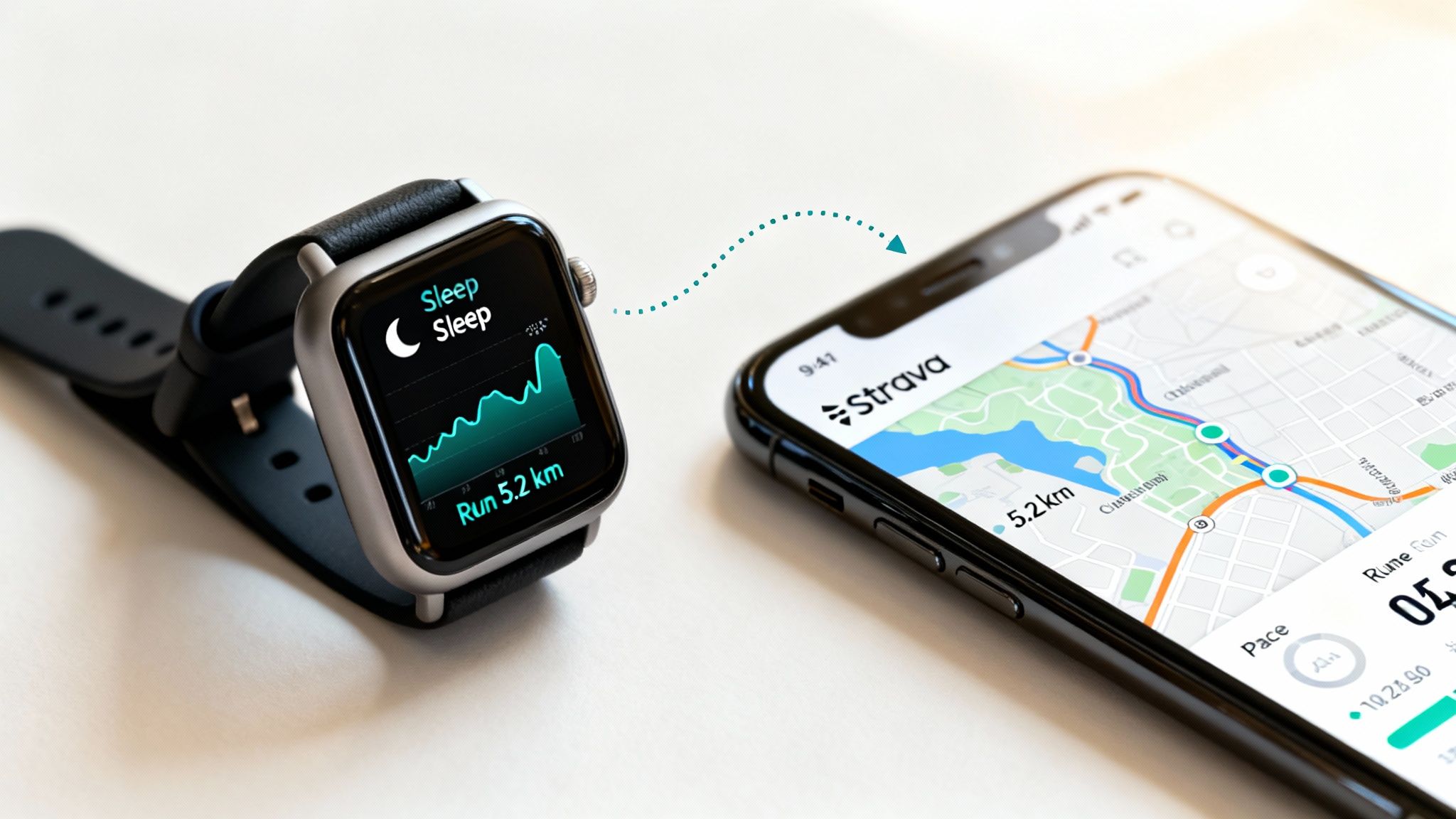
When they’re separate, you're only seeing half the picture. Link them, and you start to connect the dots between your daily habits and your athletic performance, unlocking much deeper insights.
To really see why this integration works so well, it helps to understand what each platform brings to the table.
Fitbit vs Strava At a Glance
| Feature | Fitbit | Strava |
|---|---|---|
| Primary Focus | 24/7 health & wellness tracking | Performance-based activity tracking |
| Core Metrics | Steps, sleep, heart rate, stress | Distance, pace, elevation, segments |
| Best For | Building daily habits, recovery | Analyzing workouts, competition |
| Community | Small groups & challenges | Global social network for athletes |
This table shows they aren't competitors; they're collaborators. By syncing them, you get the best of both worlds.
See the Full Fitness Picture
Here’s a real-world example of how powerful this connection can be. Let's say you're training for a race, but your run times are suddenly lagging. Your Strava data alone might not tell you why.
But with Fitbit's data synced, you might glance at your wellness stats and see your sleep score has been poor for three nights straight, or your daily stress management score is through the roof. Instantly, you have context.
This link lets you draw some powerful conclusions:
- Sleep and Performance: You can directly see how a night of restless sleep (tracked by Fitbit) impacts your pace and endurance on your morning run (logged on Strava).
- Recovery and Effort: Fitbit’s Daily Readiness Score can help you decide if today is a day to push hard for a PR or opt for a lighter recovery workout.
- Total Motivation: The kudos and competition on Strava can fuel you during a tough workout, while Fitbit nudges you to stay active the rest of the day.
The real magic is connecting your dedicated athletic efforts with your everyday habits. It’s realizing your performance isn't just about the one-hour workout, but about the other 23 hours of your day.
There's a reason so many people use both platforms. Fitbit and Strava are consistently at the top of fitness app revenue charts. On the Google Play Store alone, Fitbit brings in around US$4.76 million, and Strava isn't far behind at US$3.1 million. This speaks volumes about how much athletes value both holistic health tracking and a dedicated performance community.
This kind of integrated data is especially crucial for big goals. When you're learning how to train for a marathon, being able to analyze trends over time helps you nail your rest and recovery—a make-or-break part of any serious training plan.
How to Link Your Fitbit and Strava Accounts
Getting your Fitbit and Strava accounts talking to each other is pretty simple, and it's the key to getting a much fuller picture of your fitness life. The whole process actually starts on Strava’s end, not Fitbit’s. You can do it from either the Strava mobile app or their website—the steps are almost exactly the same on both.
No matter which device you're using, your goal is to get into Strava's settings and find the spot where you manage connected apps. This is where you'll give the two services the official thumbs-up to share your workout data.
Kicking off the Sync from Your Strava Profile
The absolute quickest way to get started is to go straight to strava.fitbit.com. That link jumps you directly to the authorization page, skipping all the menu-digging.
If you prefer to navigate there yourself, here’s how to find it:
- On a computer: Log into Strava, hover over your profile picture in the top-right corner, and click Settings. On the left-hand menu, look for and select My Apps.
- On your phone: Open the Strava app and tap the You tab at the bottom. Tap the little gear icon in the top right to open your Settings, then find Applications, Services, and Devices.
Once you're on the right screen, you’ll see a list of services you can connect. Just find Fitbit and hit the Connect button. This will bounce you over to Fitbit's website to sign in and handle the permissions.
Authorizing the Data Connection
After hitting "Connect," you'll land on a Fitbit login page. Make sure you use the right email and password, especially if you’ve already moved your Fitbit login over to your Google account.
Once you’re in, you’ll see an authorization screen. This is an important step—it's where you tell Fitbit exactly what information you're comfortable sharing with Strava. It will specifically ask for permission to view and modify your:
- Profile and Settings: This just lets Strava see your basic info.
- Activities and Exercise Logs: This is the big one. It's what gives Strava access to your GPS-tracked activities like runs, bike rides, and walks.
To make the magic happen, you'll need to check the Allow All option and then click the final Allow button. This is you giving the green light for all your future Fitbit workouts to sync automatically to your Strava feed.
A quick heads-up: this connection only works for future activities. Any workouts you tracked before linking the accounts won't magically appear in Strava. The sync only moves forward.
After you've granted permission, you’ll be sent right back to Strava. You should now see Fitbit proudly listed among your connected apps, confirming the link is active.
This screenshot shows what a successful connection looks like inside your Strava settings, right under the "My Apps" section.
Seeing Fitbit listed here is your confirmation that the two platforms are officially linked and ready to share your activity data.
Understanding What Data Actually Syncs
So, you’ve linked your Fitbit and Strava accounts. Great! Now comes the most common question I hear: what information actually makes the jump? Knowing what to expect is the best way to avoid that moment of frustration when you check your Strava feed and something is missing.
The first thing to remember is that this is a one-way street, and it’s a very specific street at that.
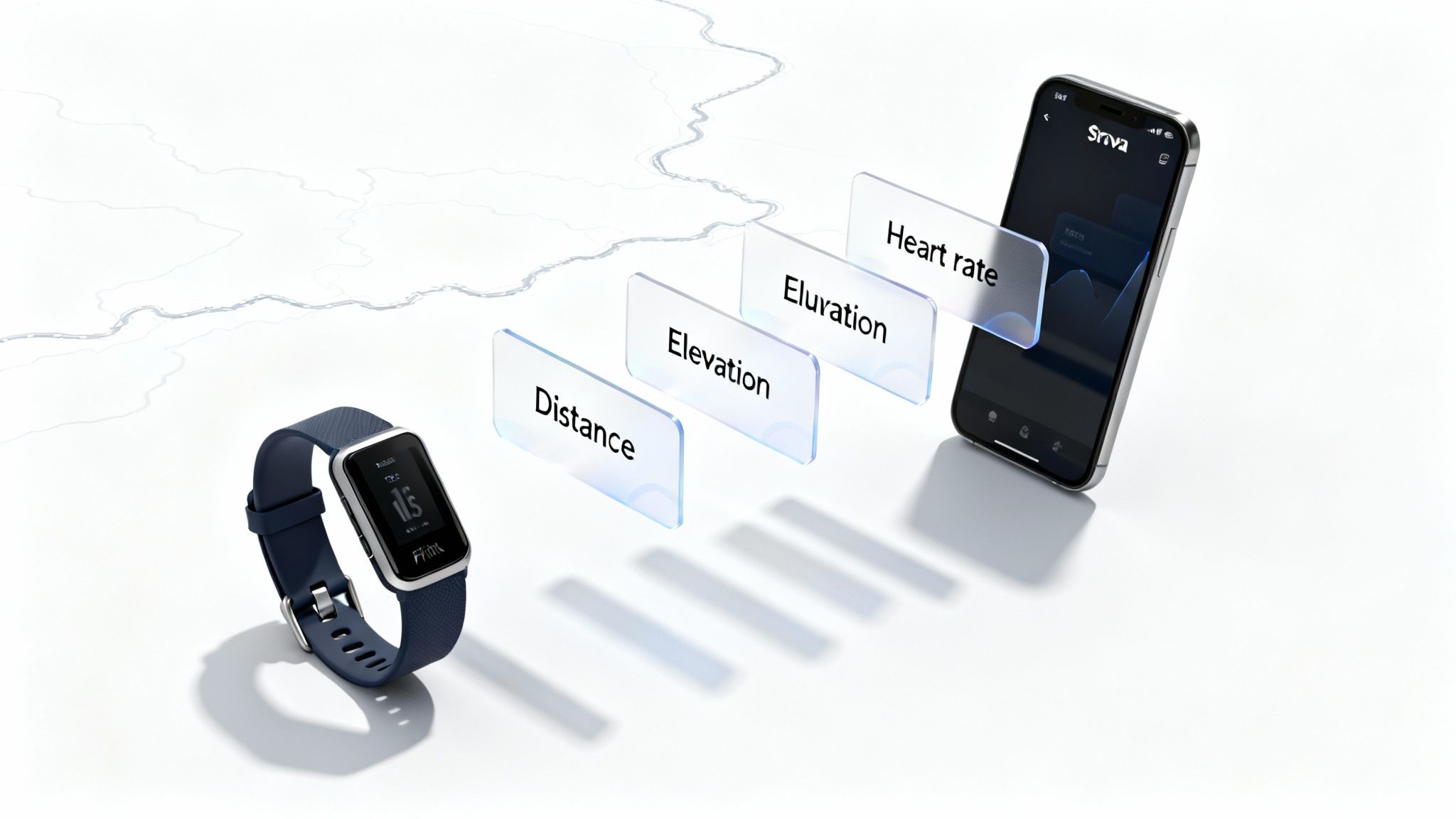
This connection is built to push only GPS-tracked activities from your Fitbit over to your Strava profile. Think outdoor runs, bike rides, or hikes—any workout where your Fitbit is actively recording a route map. Once you finish and sync your workout with the Fitbit app, it should pop up on Strava automatically a few moments later.
What Makes the Cut (And Shows Up on Strava)
When a compatible activity syncs, it carries over a ton of useful data. The idea is to make the entry look like you recorded it with Strava from the start, giving your followers the full story of your effort.
Here’s a quick rundown of what you’ll see appear on Strava:
- GPS Route Map: Your exact path, which is awesome for analyzing your performance on Strava segments.
- Distance & Duration: The essentials—how far you went and for how long.
- Pace or Speed: Automatically calculated from your distance and time.
- Elevation Data: Your total climbing and descent during the workout.
- Heart Rate Information: If your Fitbit tracked it, your average and max heart rate will be there for deeper analysis.
This rich data transfer means your outdoor adventures get the full credit they deserve in the Strava ecosystem.
What Gets Left Behind (And Stays on Fitbit)
Just as important is knowing what doesn't sync. This is where most people get tripped up. The connection isn't a complete data mirror; it's highly selective.
Don't expect to see these on your Strava feed:
- Non-GPS Workouts: This is the big one. Treadmill runs, indoor cycling, weightlifting, and yoga classes won't sync automatically because Strava requires GPS data to create an activity from a Fitbit sync.
- Daily Step Count: Your all-day step total is purely a Fitbit metric.
- Past Activities: The sync only works going forward. Any workouts you logged before connecting the accounts are stuck on Fitbit.
- Manually Logged Activities: If you add a workout to the Fitbit app by hand instead of tracking it live, it won't be sent over.
That point about indoor training is key. If you're wondering how to get your treadmill miles onto your feed, you'll need a different strategy than the automatic sync. We've got a whole guide on how to handle Strava for treadmill workouts that you might find helpful.
To make this crystal clear, here’s a simple cheat sheet breaking down what goes where.
Data Sync Cheat Sheet: Fitbit to Strava
| Data Type | Syncs to Strava? | Important Notes |
|---|---|---|
| Outdoor Run (GPS) | ✅ Yes | Your route map, pace, HR, and elevation will all transfer. |
| Outdoor Cycle (GPS) | ✅ Yes | All key metrics sync, making it ready for segment leaderboards. |
| Treadmill Run | ❌ No | Lacks GPS data, so it stays on Fitbit. Manual entry on Strava is an option. |
| Indoor Cycling | ❌ No | Just like the treadmill, this is considered a non-GPS activity. |
| Weight Training | ❌ No | This activity type is not supported by the sync. |
| Daily Step Count | ❌ No | This is a general wellness metric exclusive to your Fitbit dashboard. |
| Sleep Data | ❌ No | Sleep tracking and scores remain within the Fitbit ecosystem. |
| Past Workouts | ❌ No | The sync is not retroactive; only new activities post-connection will transfer. |
So, what’s the bottom line?
The rule of thumb is simple: If your Fitbit didn't record a GPS map for the activity, it won't show up on Strava.
Think of this sync as being exclusively for your outdoor, map-based adventures. This keeps your Strava feed focused on performance and routes—its core strength—while Fitbit continues to be your all-day wellness companion.
How to Fix Common Sync Problems
So you’ve connected your Fitbit and Strava accounts, but your latest run is nowhere to be found. It happens. Even with a perfect setup, the digital handshake between these two platforms can sometimes get a little weak. An activity might not show up, data could be missing, or you’ll notice a frustrating delay.
Don't worry—most sync issues are temporary glitches, not a sign that your connection is permanently broken. We can usually get things talking again with a few simple troubleshooting steps.
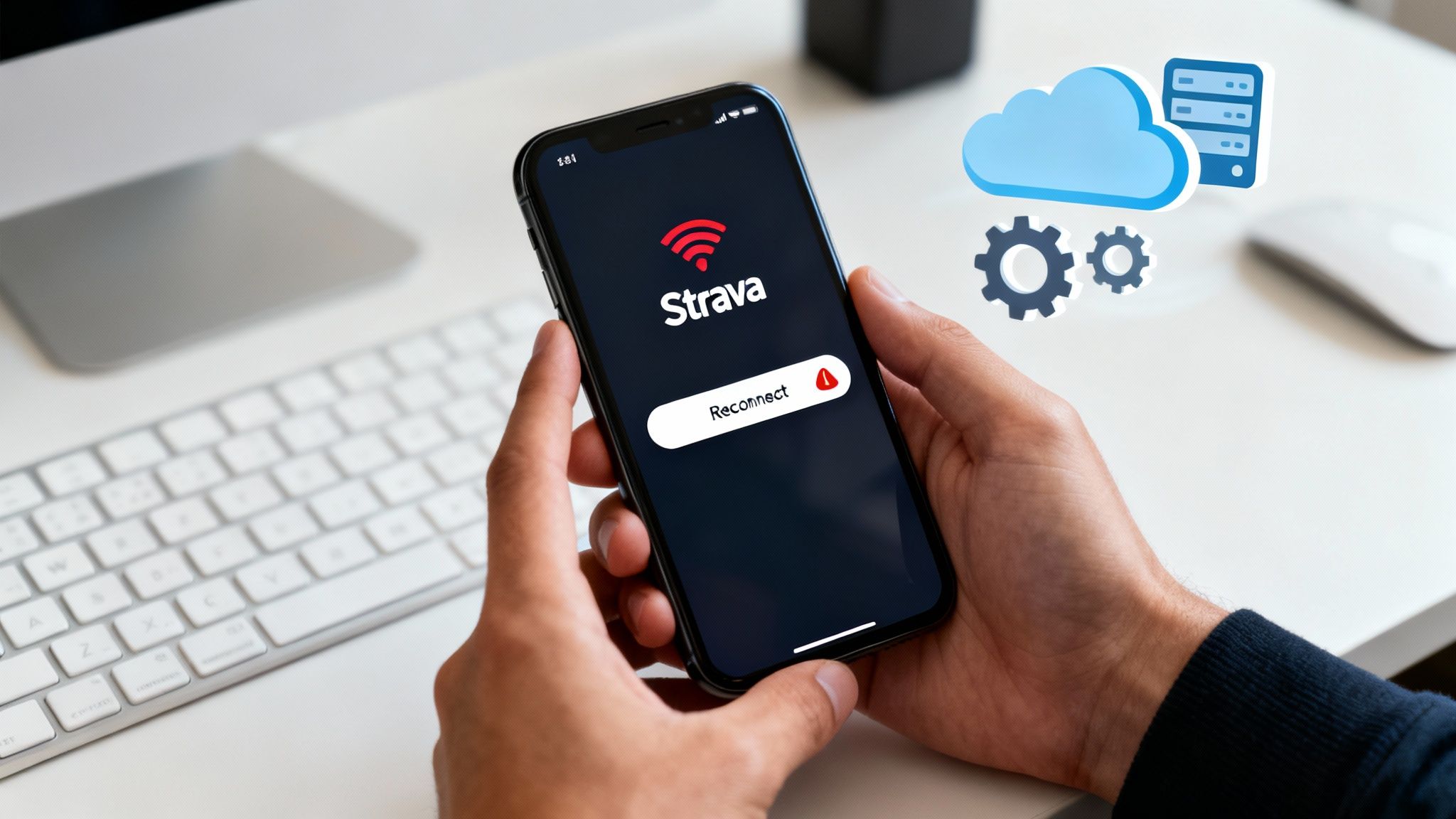
Before you start digging deep into settings, let's start with the basics. More often than not, the problem is just a temporary communication hiccup between the two services, not something you did wrong.
Start With the Obvious Checks
When a workout goes missing, my first move is always to run through a quick mental checklist. These simple steps solve the problem 90% of the time without having to disconnect and reconnect anything.
- Check the Server Status: Is it you, or is it them? Both Fitbit and Strava occasionally have server outages or API hiccups. A quick look at their official status pages or even their Twitter feeds can save you a ton of frustration. If they're down, just sit tight.
- Confirm You Used GPS: This is a big one. Remember, only activities recorded with GPS will sync over to Strava. If you forgot to enable GPS for your outdoor run or did an indoor workout like a treadmill session, it's not going to transfer automatically.
- Just Give It a Minute: I know you want to see those kudos roll in, but sometimes the servers are just busy. After you save an activity, it can take a few minutes—or even longer during peak hours—to pop up on Strava. I usually give it at least 30 minutes before I start worrying.
If you’ve gone through this list and your activity is still MIA, it’s time to bring out the most reliable fix in the playbook.
The "Turn It Off and On Again" Method: Reconnecting Your Accounts
From my experience, the number one way to fix stubborn sync issues is to do a full reset of the connection. This forces both apps to re-establish their data-sharing permissions from scratch, which clears out any digital cobwebs or corrupted tokens causing the problem.
Here’s the right way to do it:
- Revoke Access on Strava: Head into your Strava settings (Settings > My Apps). Find Fitbit in the list and click Revoke Access to cut the connection from their end.
- Revoke Access on Fitbit: Now, do the same on the other side. Open your Fitbit app, tap your profile icon, and go to Fitbit Settings > Manage Connected Apps. Find Strava and revoke its access there, too. This two-sided disconnect is the key to making this work.
- Reconnect Everything: Give it a few minutes to let the servers catch up. Then, go back into your Strava settings and follow the original connection steps to link your Fitbit account all over again.
This simple process almost always fixes sync failures, whether it's a completely missing workout or one that came through with incomplete data, like a run that’s missing its heart rate information.
Forcing a full re-authorization is the most effective way to solve stubborn sync problems. By disconnecting from both ends, you ensure that any corrupted permissions are completely cleared before you establish a fresh link.
When to Suspect a Bigger Problem
If you've re-authorized the connection and your activities still aren't syncing, the problem might be more widespread. Both Fitbit and Strava push out app and firmware updates all the time, and occasionally, one of these updates can temporarily break third-party integrations.
This isn't just theoretical—it happened as recently as early 2025, when a Fitbit update caused a major sync outage for tons of users. The companies eventually patched it, but it took a few days.
In these situations, the best thing you can do is check the community forums for both Fitbit and Strava. If a bunch of other people are reporting the exact same issue, it’s a clear sign that a fix is already in the works.
Getting Your Route Maps Looking Sharp
When you sync your Fitbit and Strava, you're not just moving numbers around—you're telling a story of your run, ride, or hike. The goal is always a clean, accurate GPS map. A crisp route line doesn't just look better on your feed; it also means your distance and pace stats are actually correct. The good news is that a few simple habits before you even start moving can make a huge difference in the quality of data your Fitbit captures.
The single best thing you can do? Be patient. Give your device a moment to get a solid GPS lock before you hit "start." Many Fitbits rely on your phone's location services (a feature they call "Connected GPS"), so they need a second to find themselves.
Before you take off, just open the exercise mode on your Fitbit and wait. You'll probably see a "Connecting..." or similar message on the screen. Hold tight until it switches to "Connected." I can't tell you how many jagged, messy starts I've seen that are caused by someone just starting their workout too quickly. It’s the number one culprit for bad data.
Pre-Workout Best Practices
Waiting for that GPS lock is huge, but a couple of other small tweaks can prime your device to capture the cleanest data possible.
- Turn on High Accuracy: Dig into your phone’s location settings and make sure it’s set to “High Accuracy.” This lets it use Wi-Fi and cell signals to help the GPS get a much faster and stronger lock.
- Find an Open Sky: This one sounds obvious, but it’s easy to forget. If you’re surrounded by tall buildings or under a thick canopy of trees, the GPS signal will struggle. If you can, start your workout in a more open area to give it a clear view of the sky.
- Keep Your Apps Fresh: Make sure both the Fitbit and Strava apps on your phone are up to date. Developers are constantly pushing out little fixes that can improve how well they talk to each other and handle data.
Taking these steps ensures you get a clean map right from the beginning. And if you're planning on turning that epic route into something special, like a custom route poster, clean data is non-negotiable. It’s what makes the final artwork look amazing.
Cleaning Up Your Data After the Fact
Let’s be real—even with the best prep, sometimes you get a little "GPS wander" at the end of your workout while you're cooling down or fumbling to save the activity. Strava has a built-in fix for this.
Once your workout is synced to Strava, you can use the 'Crop' tool to trim the beginning or end. This is a lifesaver for cleaning up messy data points, sharpening the look of your map, and correcting your final stats.
To find it, just open the activity on the Strava website (not the app), click the three-dot menu icon, and choose "Crop." You’ll see sliders that let you chop off any wobbly bits from the start or finish. It’s the perfect final touch to make sure your hard work is represented accurately.
Got Questions? We've Got Answers
Connecting your Fitbit and Strava is usually straightforward, but you might still have a few lingering questions about how it all works in the real world. Let's clear up some of the most common ones so you can get the most out of the sync.
Will My Old Fitbit Workouts Sync to Strava?
Sorry, but that’s a no. The sync only works for activities recorded after you’ve linked your accounts. Anything you tracked before making the connection will stay put in your Fitbit history.
Think of it like starting a new training log. The integration doesn't look backward, so there's no way to automatically push your entire Fitbit history over to your Strava feed.
Can I Sync Activities from Strava Back to Fitbit?
This is another common misconception. The data only flows one way: from Fitbit to Strava. If you record a ride with a Wahoo computer or track a run using just the Strava app on your phone, that activity will not show up in your Fitbit dashboard.
The whole point of the integration is to get your Fitbit-tracked workouts onto Strava, not the other way around.
The connection is designed to push GPS activities from your wrist to your Strava feed. It won’t pull data from other apps or devices back into your Fitbit account.
Why Did My Activity Sync Without a Map?
This is a classic GPS issue. If your workout shows up on Strava but the map is missing, it almost always means your Fitbit didn't get a solid GPS lock before or during your activity.
This often happens if you start your run the second you walk out the door, without giving the watch a moment to connect. It can also be an issue in areas with a weak signal, like downtown among tall buildings or on a trail under dense tree cover. Without that location data, Strava gets the stats but can't draw the map. The fix? Always wait for your Fitbit to confirm it's "Connected" or the GPS icon stops blinking before you hit start.
Does the Sync Work with All Fitbit Devices?
Pretty much! As long as your Fitbit can track an activity using GPS, it can sync to Strava. This covers devices with built-in GPS (like the Charge, Sense, and Versa series) and those that use "Connected GPS" (which piggybacks off your phone's GPS).
Ultimately, the specific model doesn't matter as much as its ability to record a GPS-tracked route. If it can do that, it can talk to Strava.
Ready to turn those hard-earned routes into art? At RoutePrinter, we transform your greatest running, cycling, and hiking achievements into beautiful, minimalist posters. Celebrate your journey and create a lasting reminder of your dedication. Design your custom route poster today!